Have you ever used End Key on your computer keyboard? Have you strayed away from it because you don't really know what it does? The End key is located in the little section of keys to the left of the numberpad on computer keyboard. It's right under the Home key and right in between the Delete key and the Page Down key. Well, hit this 'End' key to move the cursor to the end of the line, paragraph, page, screen, cell, or document depending on the program and where the cursor is currently positioned. The End key can actually do different things, depending on the program you're using it with. Its main use though is to help get from the top of a page to the bottom quickly,using a key combination such as pressing the Shift key and the End key together would highlight the text from the cursor to the end of the line. It's really one of the keys to save time. Hence do try it out and make it a habit to regularly use towards this End!
Showing posts with label PC. Show all posts
Saturday, February 7, 2009
Pc2Web TIPS - End It All !
Have you ever used End Key on your computer keyboard? Have you strayed away from it because you don't really know what it does? The End key is located in the little section of keys to the left of the numberpad on computer keyboard. It's right under the Home key and right in between the Delete key and the Page Down key. Well, hit this 'End' key to move the cursor to the end of the line, paragraph, page, screen, cell, or document depending on the program and where the cursor is currently positioned. The End key can actually do different things, depending on the program you're using it with. Its main use though is to help get from the top of a page to the bottom quickly,using a key combination such as pressing the Shift key and the End key together would highlight the text from the cursor to the end of the line. It's really one of the keys to save time. Hence do try it out and make it a habit to regularly use towards this End!
Friday, January 9, 2009
Pc2Web TIPS - Firefox Session Restore Utility
Mozilla Firefox and Internet Explorer are two most popular and reliable internet browsers on the planet. But which one is more user friendly and preferable? Of course, the internet user community is divided about this. However I use both simultaneously.Have you ever heard of the Session Restore feature in Firefox? The Session Restore feature basically restores a browsing session for you if Firefox happens to crash or Software crash due to unexpected issues such as power outage or problems with a website or software errors. Firefox may close or your computer shuts down unexpectedly. For example, you're working along in Firefox and you have close to 5 tabs open at once. When everything settles down and you turn your computer back on, you can open Firefox again and it will ask you if you want to restore your previous session or not. You can then either go back to what you were doing or start a brand new session. How cool is that?!
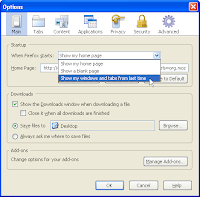
Firefox can be configured to restore all windows and tabs that were open when the application is closed or terminated unexpectedly.To set up the Session Restore feature for your Firefox browser, simply go to Tools, Options and under the Main tab, look for the first section that says "When Firefox starts." Use the drop down menu and select "Show my windows and tabs from last time." Click OK and you'll be all set. You never have to worry about losing one of your browsing sessions ever again. So, go on and work in confidence! If Firefox continues to experience errors when windows and tabs are re-opened, you can launch the browser without restoring these items. Click Start New Session.
A Caution: Session Restore may keep you logged in to sites that you were logged into before you closed Firefox. If someone else used your computer after you, they could access your account on these sites. If this is a concern then you should not configure Firefox to open all windows and tabs from your previous session ("Show my windows and tabs from last time" option described above).
Firefox can be configured to restore all windows and tabs that were open when the application is closed or terminated unexpectedly.To set up the Session Restore feature for your Firefox browser, simply go to Tools, Options and under the Main tab, look for the first section that says "When Firefox starts." Use the drop down menu and select "Show my windows and tabs from last time." Click OK and you'll be all set. You never have to worry about losing one of your browsing sessions ever again. So, go on and work in confidence! If Firefox continues to experience errors when windows and tabs are re-opened, you can launch the browser without restoring these items. Click Start New Session.
A Caution: Session Restore may keep you logged in to sites that you were logged into before you closed Firefox. If someone else used your computer after you, they could access your account on these sites. If this is a concern then you should not configure Firefox to open all windows and tabs from your previous session ("Show my windows and tabs from last time" option described above).
Subscribe to:
Posts (Atom)